There are three main ways to automate Instagram messages:
- Instagram’s AI auto replies work for simple instant replies.
- Scheduled Instagram messages work for planned one to one follow ups.
- Chatling is better when you need AI to answer questions, capture leads, and pass complex chats to a human.
For most support teams, Chatling offers the strongest balance of speed, context, and human backup. Read on to see how each method works.
Visit the Chatling blog for more guides like this.
Are your Instagram DMs more than you can handle manually?
Instagram DMs are no longer just a place for quick replies. Customers use them to ask about prices, products, shipping, bookings, refunds, demos, and support issues.
That creates a problem for growing teams. Messages arrive at all hours, repetitive questions pile up, and important leads can get buried under routine replies.
Instagram message automation helps you respond faster without watching your inbox all day. In this Chatling guide, we will cover three ways to do it. You will learn how to use Instagram’s AI auto replies for basic auto replies, Chatling for AI powered Instagram support, and scheduled messages for planned follow ups.
Why listen to us?
At Chatling, we help teams build AI support agents across website chat, WhatsApp, Instagram, Telegram, and Messenger. More than 1,000 teams use Chatling, with a 4.7 out of 5 rating on G2, and 4.3 out of 5 on Trustpilot. We know Instagram automation because we help teams turn DMs into faster support conversations.
What does it mean to automate Instagram DMs?
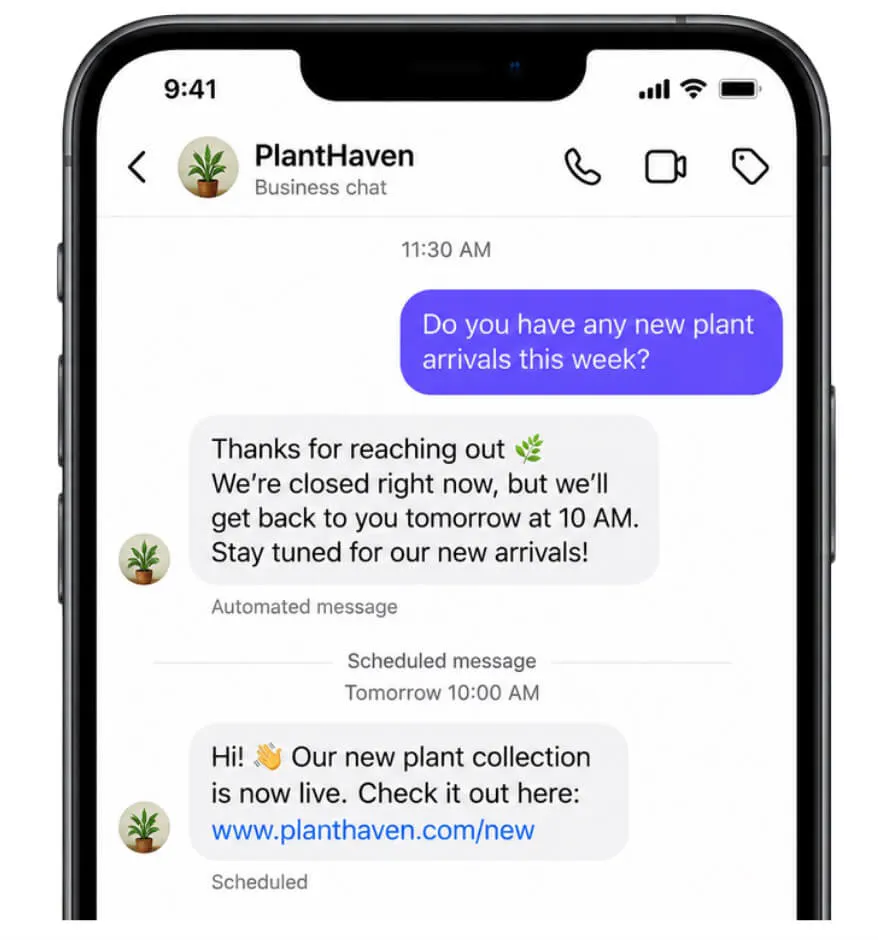
Instagram message automation means setting up rules, replies, or AI agents that respond to Instagram DMs without a person typing every message.
At a basic level, this means sending an instant reply when someone messages your account for the first time. For example, a business can say, “Thanks for reaching out. We usually reply within two hours.”
At a more advanced level, automation can answer product questions, share pricing details, ask lead qualification questions, route complex issues, or send a conversation to a human agent.
Automation should not replace your team. It should clear the simple, repetitive questions so fewer messages slip through and your team has time for the conversations that actually need a person.
Good Instagram automation should feel helpful, not robotic. It should answer clearly, keep replies short, and make it easy for customers to reach a real person when needed.
Instagram DMs you can automate, with examples
You can automate several Instagram message types, depending on the tool you use and how complex your support flow needs to be.
Instagram message type | What you can automate | Best for | Example |
|---|---|---|---|
First replies to new messages | Send an instant greeting, set response expectations, and guide people to the next step. | Ecommerce, SaaS, local services, agencies, creators | “Thanks for messaging us. Tell us what you need help with, and we’ll point you in the right direction.” |
Common customer questions | Answer repetitive questions about pricing, availability, shipping, returns, store hours, bookings, service areas, or support policies. | Ecommerce, local services, SaaS | An ecommerce brand can automatically answer sizing, delivery time, product availability, and return policy questions in Instagram DMs. |
Lead capture and qualification | Ask for details such as name, email, business need, team size, budget, request type, or project timeline before a human follows up. | SaaS companies, agencies, consultants | A SaaS company can ask about company size, use case, and email address before sending qualified leads to sales. |
Booking and service questions | Share booking links, opening hours, locations, service details, appointment options, or availability. | Clinics, salons, restaurants, local service businesses | A clinic can answer “Are you open this weekend?” and send the right booking page. |
Resource, course, and community support | Send links, answer course questions, share event details, or help followers find the right content or community resource. | Creators, educators, coaches, online communities | A creator can automatically send a free guide, course link, or event details when someone asks for them. |
Follow-up and support context | Collect feedback, monitor repeated questions, improve automated answers, and keep conversation history ready for the team. | Growing support and sales teams | Automation can ask “Did this answer your question?” and tag unresolved conversations for review. |
Next, let us look at how to automate Instagram messages using three different methods.
Method 1: How to automate Instagram DMs using Instagram’s AI auto replies
Instagram has a native AI auto reply feature that lets your creator AI respond to selected Instagram messages. This works inside the Instagram mobile app and is being rolled out slowly, so it’s not available to every account yet.
This method is best if you want Instagram’s own AI to reply to messages from a chosen audience. You can choose replies for anyone you do not follow, followers you do not follow back, or only people you choose.
To use Instagram AI auto replies, you need:
- A professional Instagram account
- A creator AI already built with Meta AI Studio
- Agreement to the Instagram Creator AI Terms
- Access to the feature in the Instagram mobile app
With these in place, follow the steps below to set up your automated responses.
Step 1. Open your professional dashboard
Open the Instagram mobile app, go to your profile, then tap “Professional dashboard.”
Step 2. Open your AI settings
Under “Your tools”, tap “Your AI.” Then tap the gear icon to open Your AI Settings.
Step 3. Choose your auto reply audience
Turn on auto replies for the audience you want your AI to answer.
You can choose:
- Anyone you do not follow
- Followers you do not follow back
- Only people you choose
Your AI will only respond to messages and message requests from the audience you selected.
Step 4. Monitor chats and step in when needed
You can still jump into chats and reply to yourself at any time. When you respond directly, your creator AI pauses auto replies and starts again after some time has passed.
Step 5. Turn off auto replies when needed
You can turn off AI auto replies for all chats from Your AI Settings by turning off the Auto replies toggle. You can also turn them off for one chat. Open the chat, tap the person’s account name, tap AI auto replies, then turn off the toggle.
Method 2: How to automate Instagram DMs using Chatling
Instagram AI auto replies are useful if you already have access to Creator AI and want native replies inside Instagram. But they are not the same as a full support setup.
Chatling is better when Instagram DMs have become a real support or sales channel. Instead of sending the same fixed reply to everyone, Chatling lets you connect Instagram to an AI agent that can answer questions based on the knowledge and behavior you set.
This method works well for customer support, lead capture, product questions, pricing questions, FAQs, and handoff to a human agent.
Step 1. Create an AI agent in Chatling
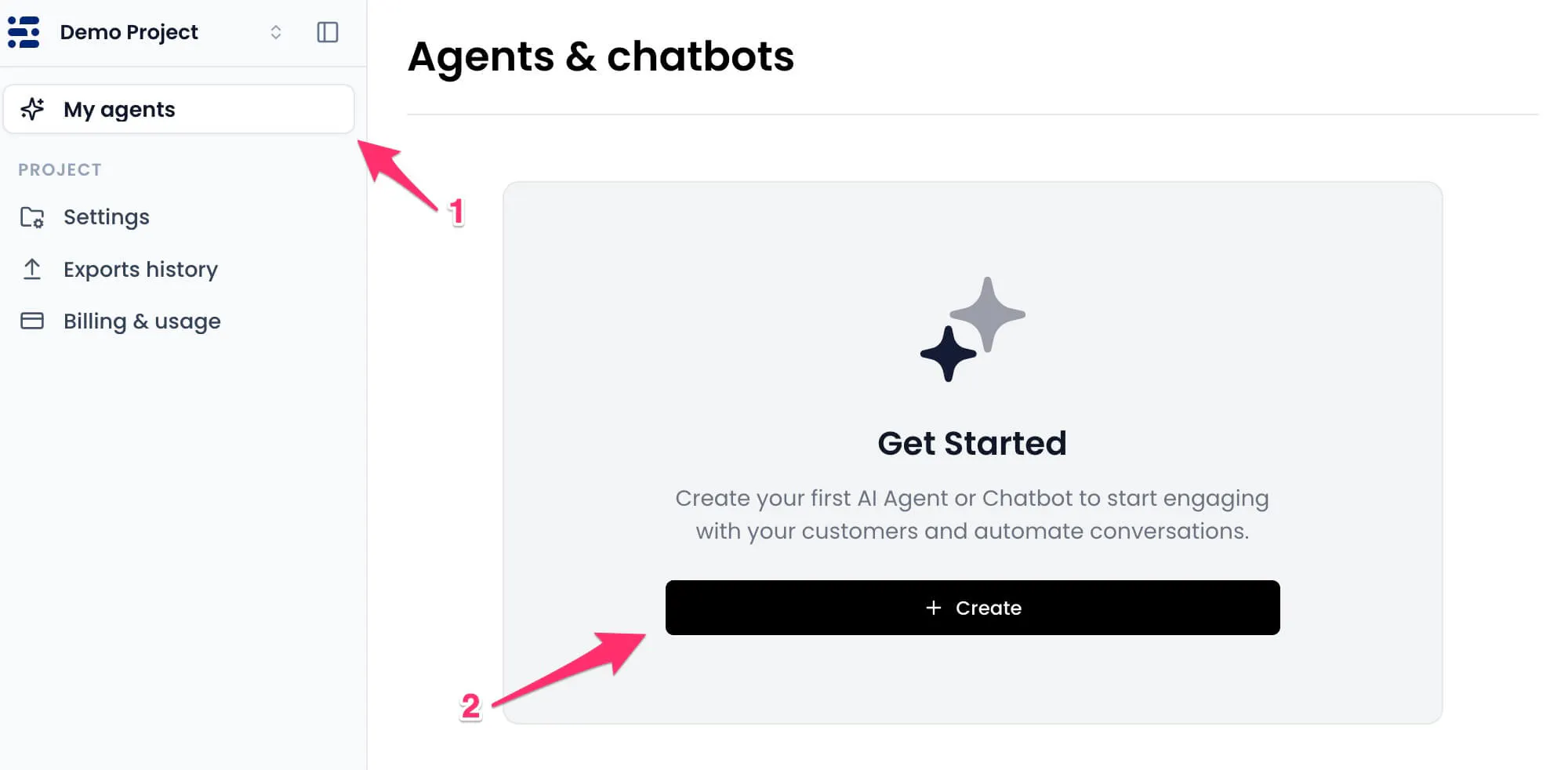
Log in to your Chatling account and go to the My agents page.
Click Create, choose AI Agent as the agent type, then give it a clear name, such as “Instagram Support Agent” or “Instagram Sales Assistant.” Click Create agent to finish.
Step 2. Add your support knowledge
This is where Chatling becomes more useful than a basic auto reply. You can add the knowledge your AI agent should use when answering Instagram DMs.
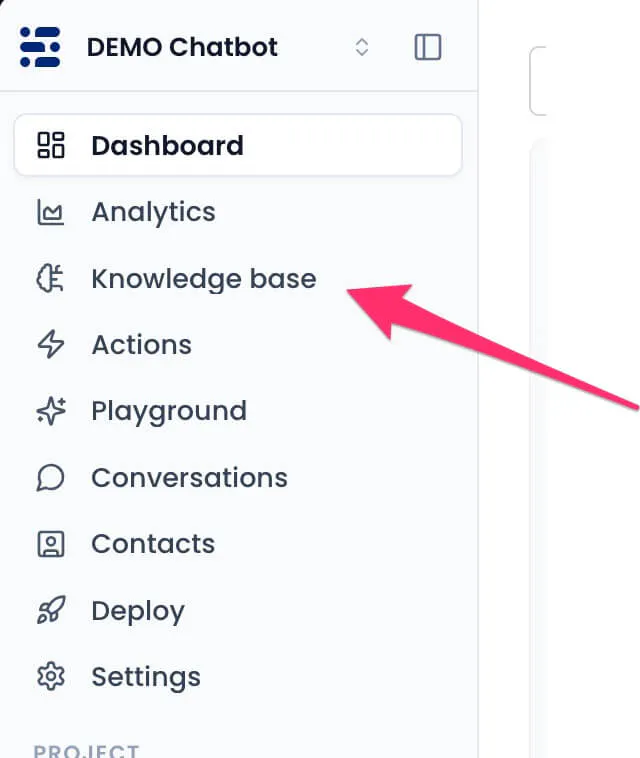
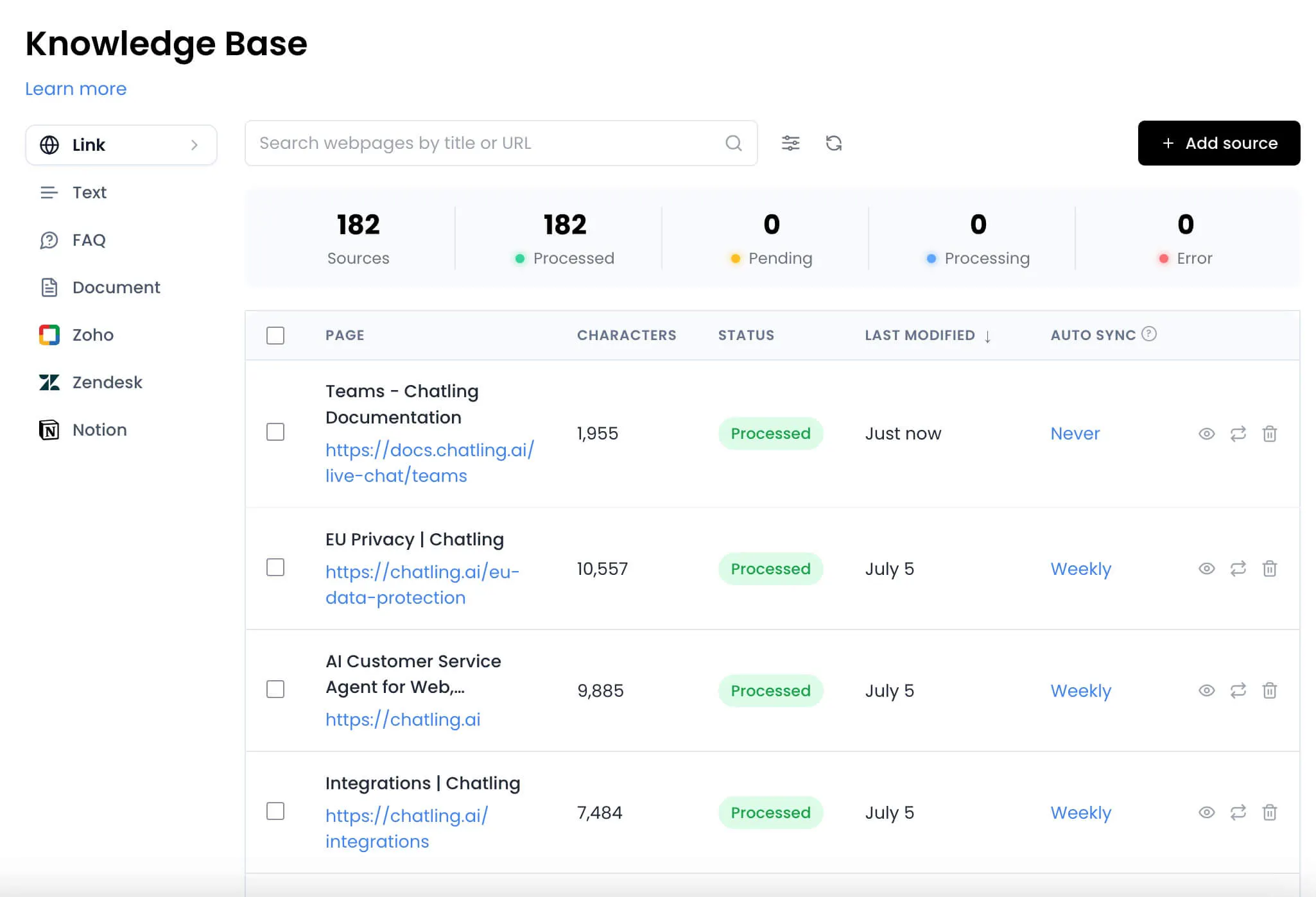
To do that, click Knowledge Base from the side menu, click the Add new button, and choose the type of data you want to add.
This can include your website content, FAQs, help docs, product details, pricing information, shipping rules, return policies, booking details, or service pages.
Step 3: Test your Instagram AI agent and deploy
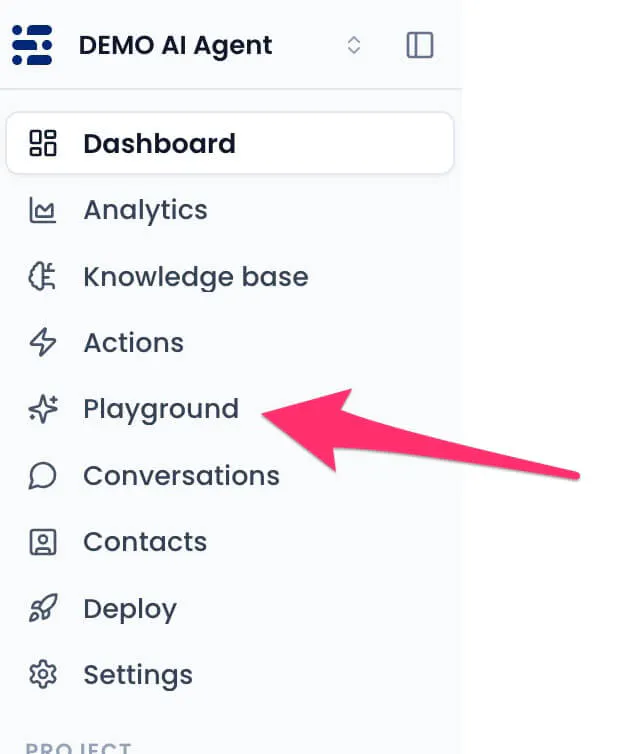
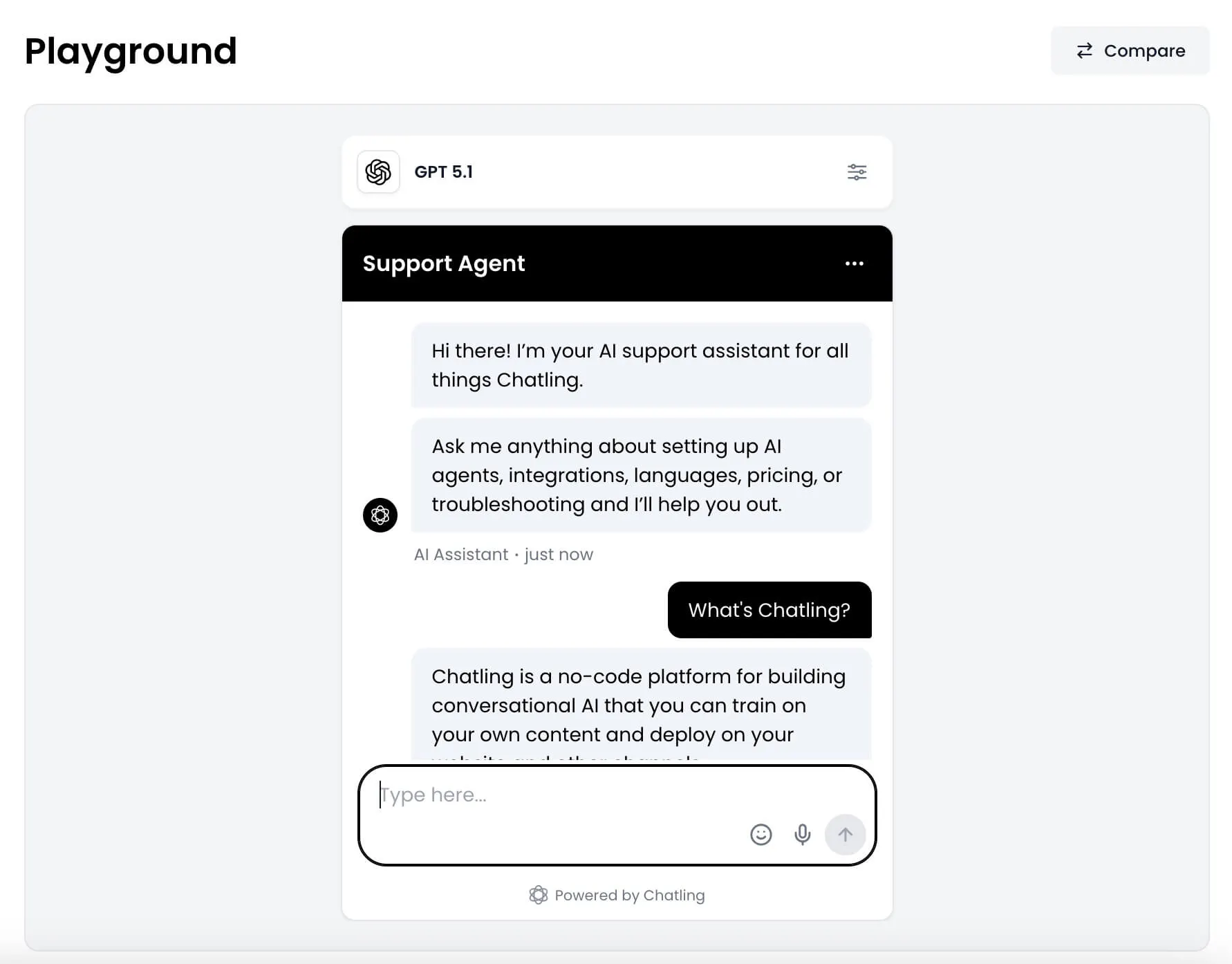
To test your new AI agent for accuracy, open the Playground menu from the sidebar menu.
Then ask a few questions and see if the answers are accurate. Remember, the more accurate your source content is, the more helpful your AI replies will be.
Once satisfied with the accuracy level, proceed to deployment.
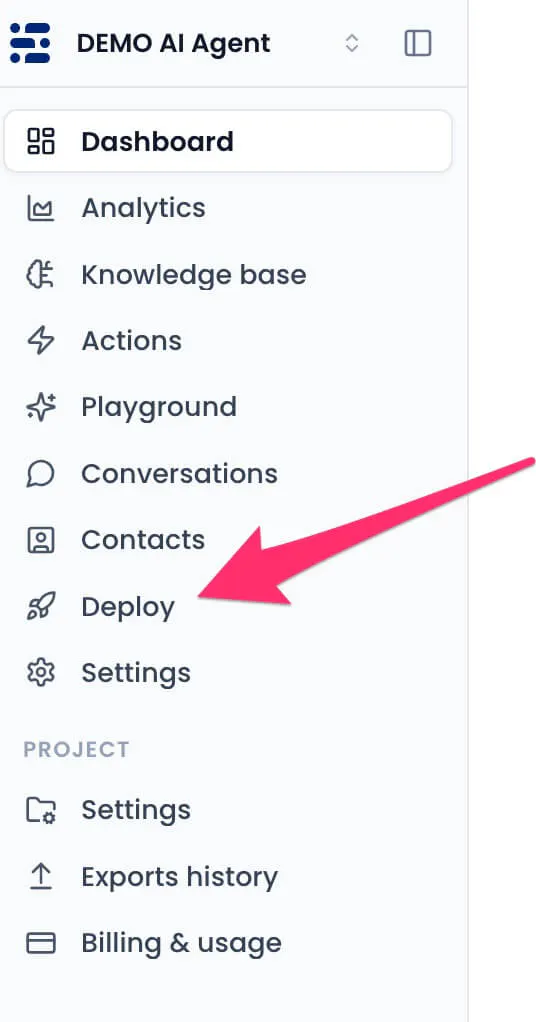
From your agent dashboard, click Deploy in the sidebar.
You will see different deployment options. Click the Setup button for Instagram.
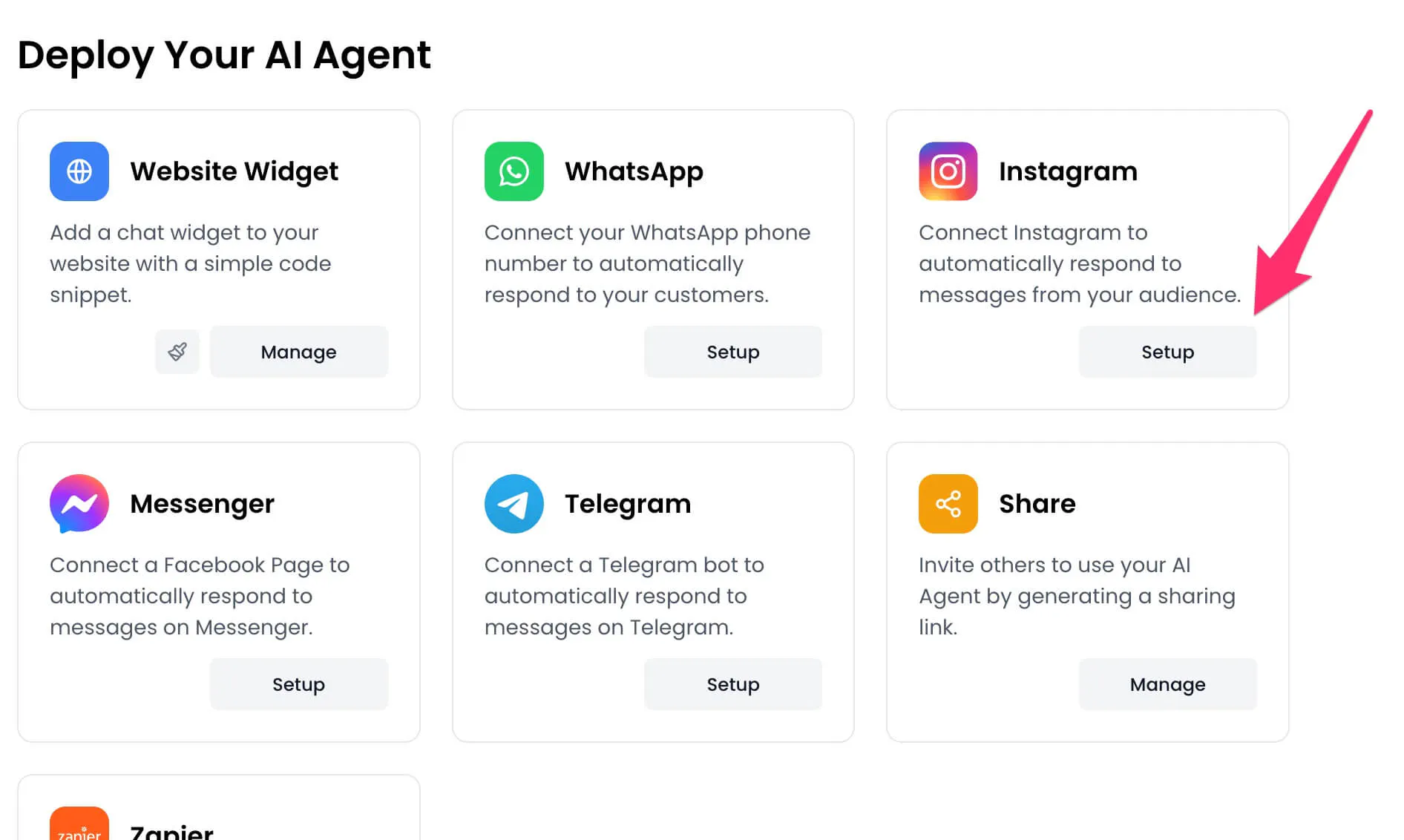
Step 4. Sign in with Instagram
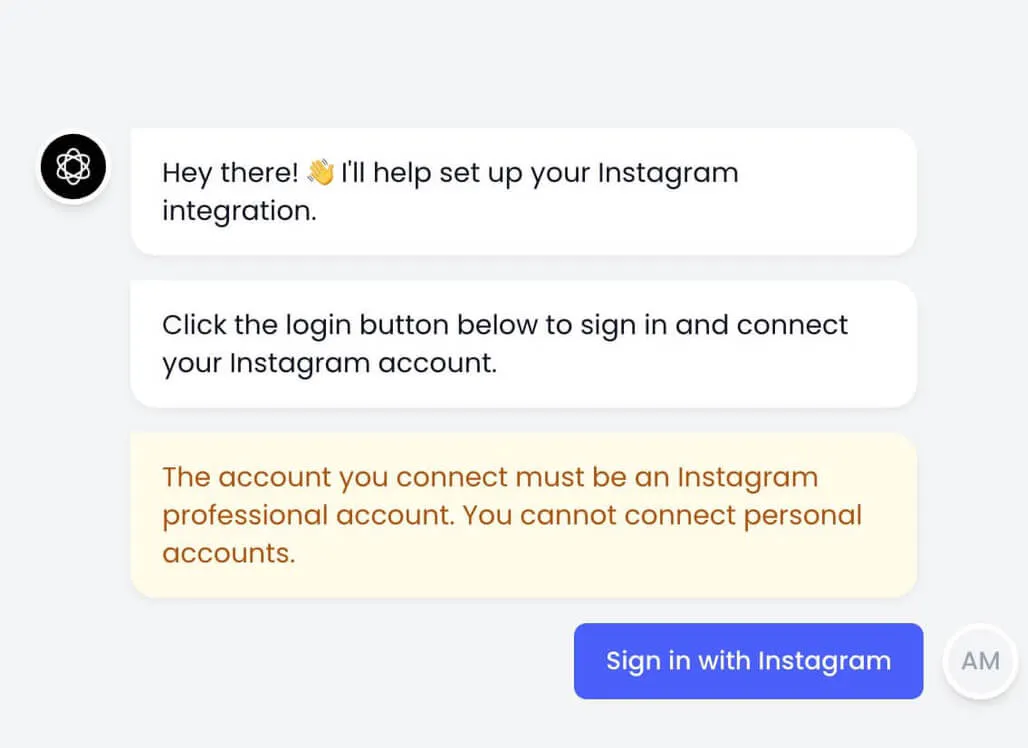
A popup will guide you through the Instagram connection process.
Click “Sign in with Instagram”, log in to the account you want to connect, then continue through the authentication steps.
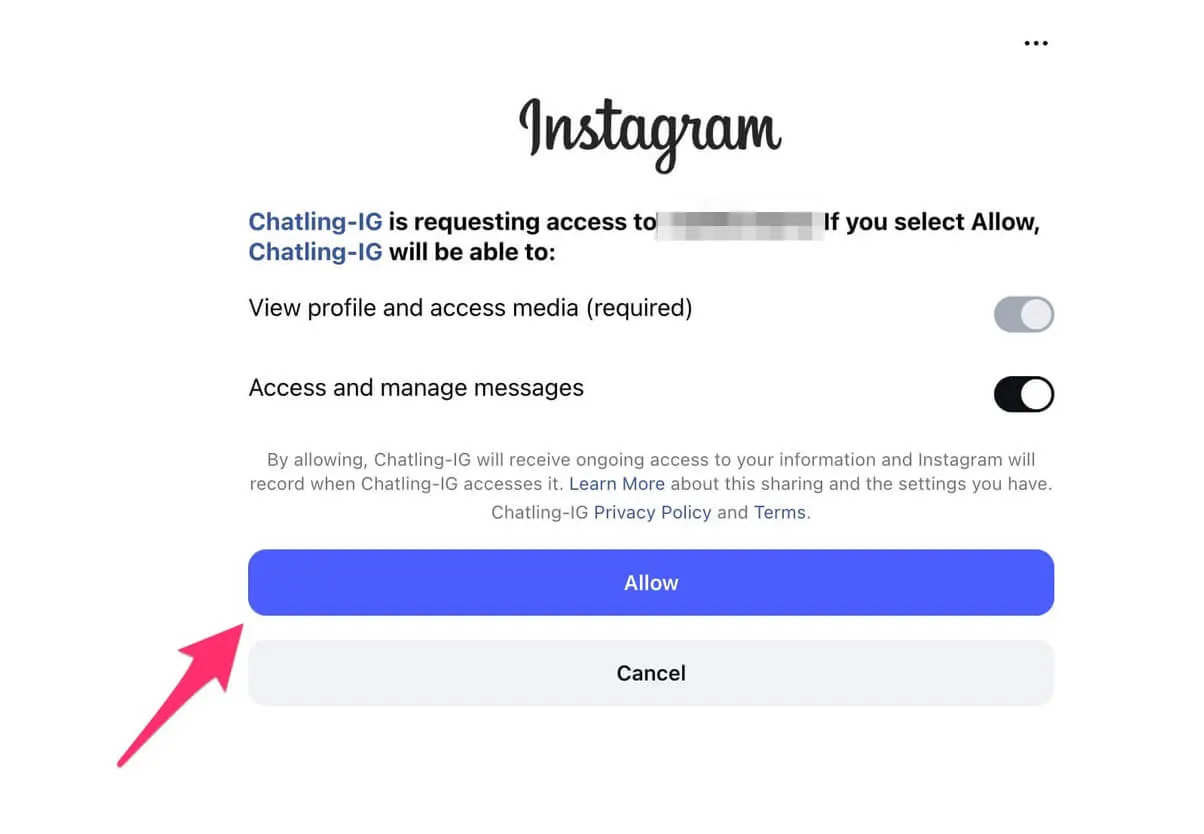
Instagram will show the permissions Chatling needs. Allow the required permissions so Chatling can send and receive Instagram messages through your AI agent.
Step 5. Monitor Instagram conversations
After Instagram is connected, Chatling can send and receive Instagram messages through the AI agent.
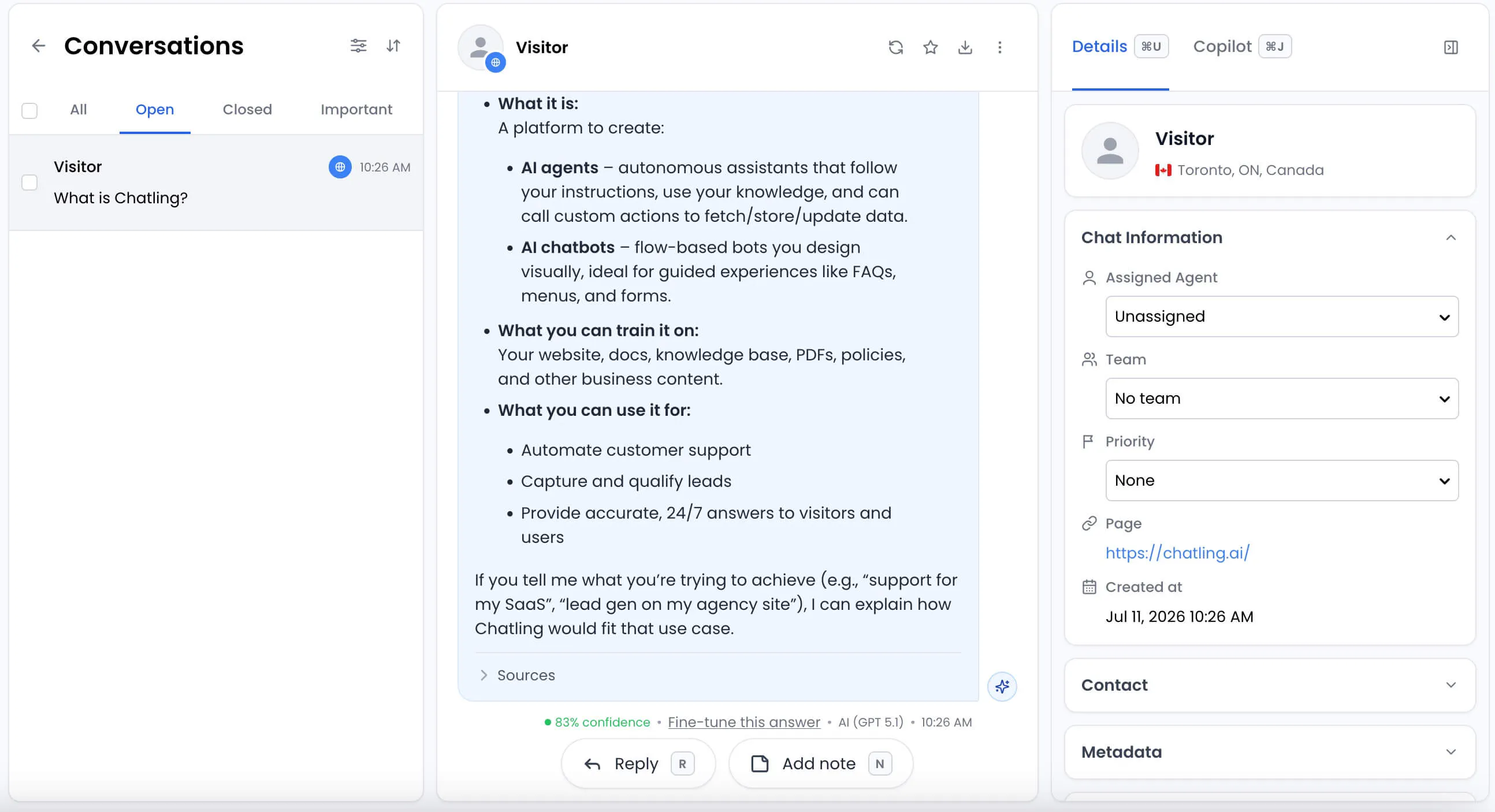
To review conversations, open the AI agent in Chatling and click “Conversations” in the sidebar. You can read the full message history, see how users started conversations, review incoming and outgoing messages, and check how the AI responded.
This helps you spot weak answers, missing content, and questions that should move to a human.
Step 6. Improve replies over time
Instagram automation should improve as you learn what people ask.
Review repeated questions, update your knowledge sources, adjust your agent instructions, and refine handoff rules. If customers keep asking about the same policy, product, or booking detail, add that information to the AI agent so future replies are better.
Method 3: Instagram DM automation for future messages
Scheduled Instagram messages are useful when you do not need a chatbot or AI agent. Instead, you write a message now and choose when it should be sent to a specific person later.
This works best for planned follow ups, reminders, time zone friendly replies, and messages you do not want to forget.
Step 1. Open Instagram Direct Messages
Open Instagram and go to your Direct Messages. Choose the conversation where you want to send the scheduled message.
Step 2. Type your message
Write the message as you normally would.
For example, you might schedule a reply to remind a lead about a call, send a booking link later in the day, or follow up after a customer asks for more details.
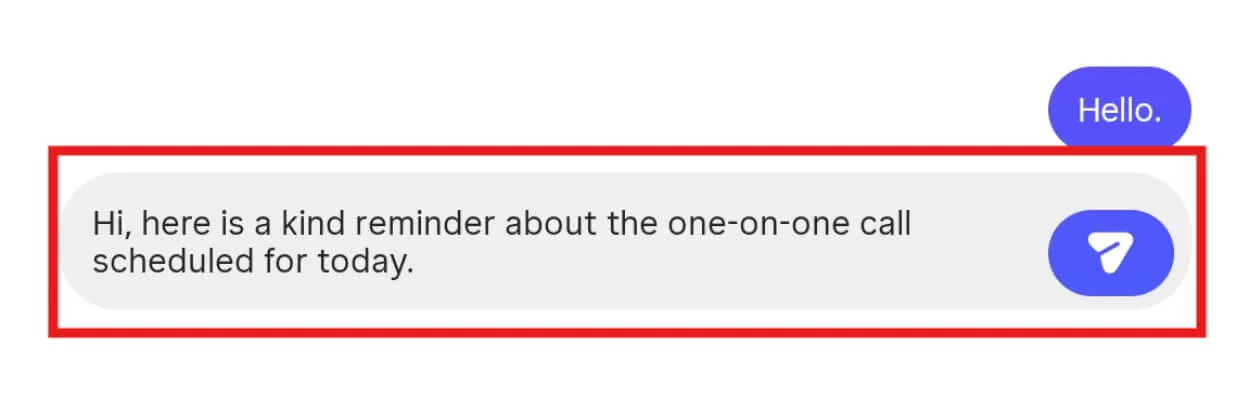
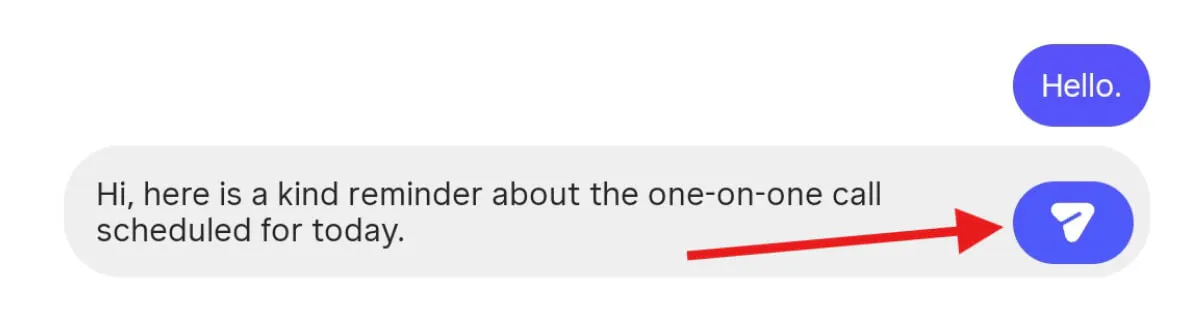
Step 3. Press and hold the send button
Instead of tapping send, press and hold the send button. Instagram will show scheduling options if the feature is available on your account.
Step 4. Choose the date and time
Select the date and time you want the message to send. Then click the “Send (date and time) button.”
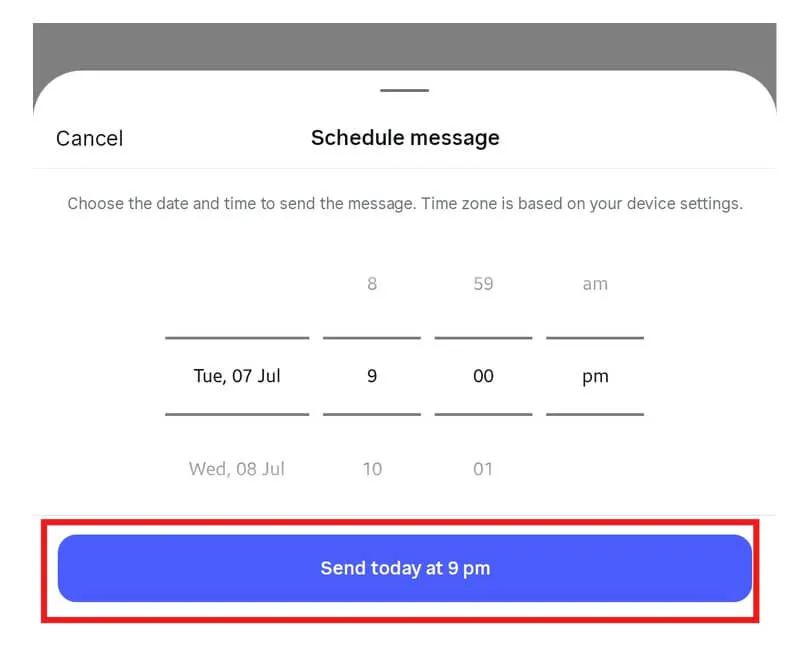
Confirm the scheduled message and check that it appears in the conversation as planned.
Instagram AI auto replies vs Chatling vs scheduled Instagram DMs
To help you decide the best fit for your workflow, here is a table comparing the three Instagram message automation methods by setup type, reply style, support depth, and the best situation for each one.
Factor | Instagram AI auto replies | Chatling | Scheduled Instagram messages |
|---|---|---|---|
Method type | Native Instagram AI reply feature | AI Instagram support agent | Planned manual message |
Best for | Creator AI replies to selected audiences | Customer support and lead capture | Planned one to one follow ups |
Availability | Gradual rollout inside Instagram mobile app | Available through Chatling Instagram integration | Available inside Instagram DMs |
Setup requirements | Professional account, Creator AI, Meta AI Studio, Creator AI Terms | Chatling account and Instagram Business or Creator account | Instagram DM conversation |
Reply style | AI replies from your creator AI | AI answers from your support knowledge | Manually written message |
Works for incoming DMs | Yes, for selected audiences | Yes | No |
Answers FAQs | Possible, based on your creator AI setup | Yes, from configured business knowledge | No |
Captures leads | Limited | Yes | No |
Human handoff | You can jump into chats yourself | Built into the support flow | No |
Conversation review | Inside Instagram chats | Chatling conversation dashboard | Chat view only |
Channel scope | Instagram only | Instagram only | |
Best use case | Native AI replies for creator accounts | Resolving Instagram questions with AI and human backup | Sending a specific message later |
Best practices for automating Instagram DMs
Instagram automation works best when it helps customers get clear answers without making the conversation feel cold or confusing. Follow these practices before you publish your flow.
- Connect Instagram properly: Some tools require a Professional account, Creator AI, or Meta AI Studio. Others, like Chatling, use an Instagram authentication flow. Make sure you have permission to connect the account before you start.
- Group questions by intent: Do not send the same reply to everyone. Group common questions by intent, such as pricing, shipping, booking, returns, product details, or support, so replies feel more useful.
- Keep replies short: Instagram DMs should feel quick and natural. Answer one question at a time, avoid long blocks of text, and give the customer a clear next step.
- Set limits for AI replies: Do not automate every topic. Refund disputes, billing issues, legal questions, urgent complaints, account access problems, and sensitive customer details should move to a human.
- Plan human handoff: Automation should not trap customers in a loop. Decide who handles complex Instagram conversations, how they get notified, and what context they need before replying.
- Add fallback replies: Your automation will not understand everything. Add a fallback reply that tells customers what to do next or offers a way to reach a person.
- Test from a real Instagram account: Before launch, send real messages from another account. Check timing, tone, accuracy, fallback replies, and handoff before customers use the flow.
Automate Instagram DMs without leaving customers stuck
There are three useful ways to automate Instagram messages. Instagram AI auto replies works for simple instant replies. Scheduled messages work for planned follow ups. Chatling is better when Instagram becomes a real support or sales channel.
Chatling lets you connect Instagram to an AI agent that can answer questions, capture leads, review conversations, and pass complex chats to your team with context.
Sign up and build your first Instagram AI agent for free today.
Frequently Asked Questions
Which Instagram DM automation should I choose?
How you automate Instagram messages depends on your specific needs. Use Instagram AI auto replies for basic native replies. Use scheduled messages for planned follow ups. Use Chatling when you need to automate Instagram messages for AI support, lead capture, review, and human handoff.
Can I automate Instagram DMs without exposing customer data?
Yes, but with Chatling. Chatling is GDPR compliant, so teams can easily automate Instagram support while following strong privacy and personal data protection standards.
What should trigger my automatic Instagram DM?
Your automatic Instagram DM should trigger when someone shows clear intent. That could be a new message, a pricing question, a product question, a booking request, a support issue, or a lead asking for more details. See how to set up and use triggers on your Instagram AI agents.
Can I generate leads with an automated Instagram DM?
Yes. Automated DMs powered by Chatling’s AI agents can help with lead generation efforts. Ask qualifying questions, collect contact details, learn what someone needs, and send stronger leads to your team.
How much does it cost to automate Instagram DMs with Chatling?
You can start for free and build your Instagram AI agent in minutes. For higher message volume, you can add more AI credits, agents, and capacity. Check our pricing page for more details.